

Compare models (Arena)
Arena lets you send one prompt to several models at once and read their answers side by side — so you can pick the model that's best (or cheapest) for a task instead of guessing. Open Arena in the console sidebar.
Prerequisites
- You belong to at least one project (Get access).
- Your project has at least two models you're allowed to call (see Models & routing).
How it works
Pick a project, choose two to four of your allowed models — one per column — and type a prompt. Each Send to all fans the same prompt out to every column in parallel, and each model streams its answer into its own column. Keep chatting: every follow-up goes to all columns at once, so the conversation stays in lockstep and you can compare how each model handles a whole thread.
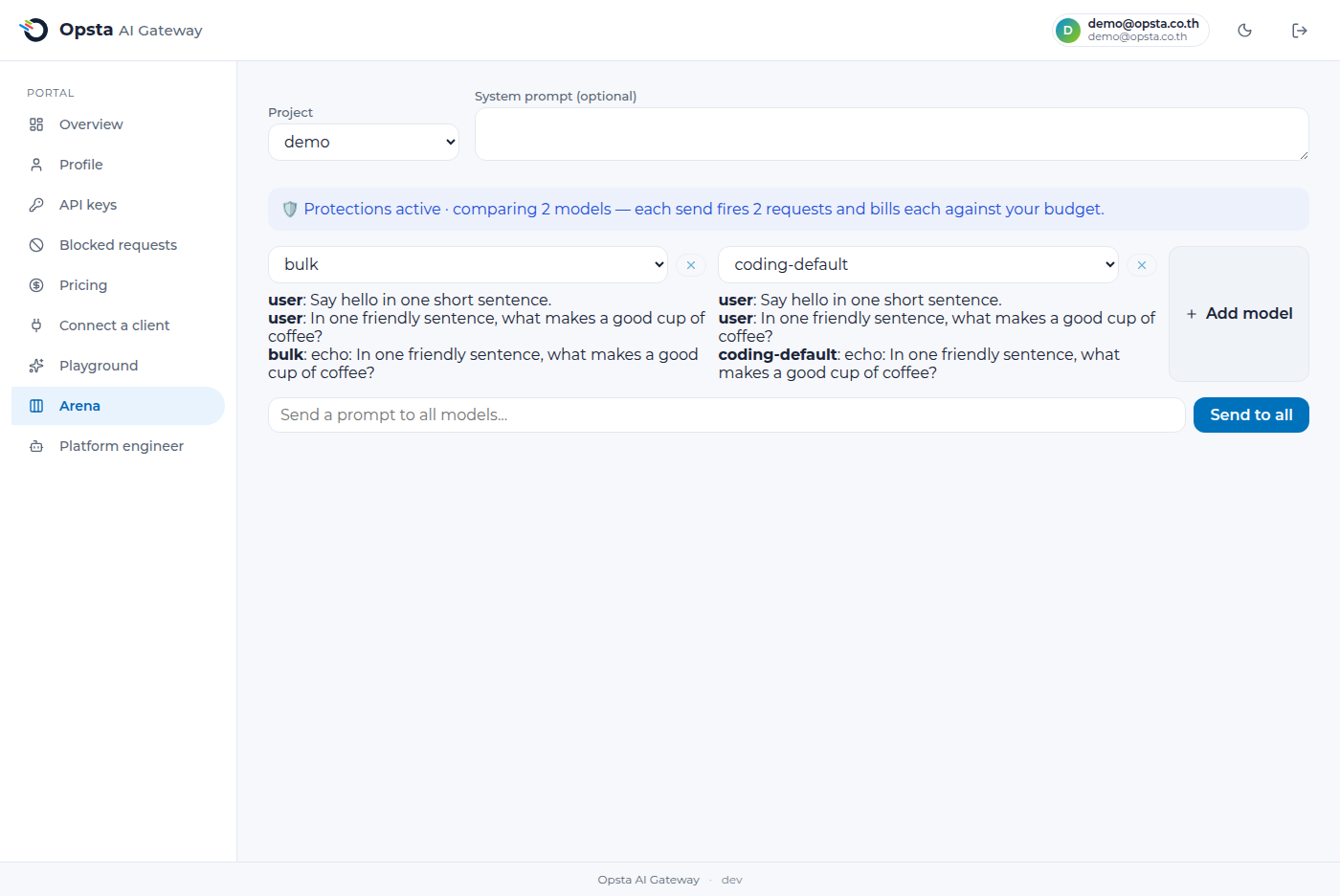
- Add or remove columns with Add model and the ✕ on a column (two to four models).
- An optional system prompt applies to every column equally.
- Use the ✕ next to a model to change that column, or the model dropdown to swap it.
What it costs and what's enforced
Comparing models means real requests — one per column. Each send bills N requests against your project budget, exactly as if you'd sent them yourself, and every column is subject to the same controls as any other request:
- Budgets and limits apply per request. If a column runs out of quota, that column shows the error while the others continue.
- Guardrails are always on. Prompt-injection protection and any project guardrails run on each column; if one blocks the request, that column shows the block inline and the rest still answer.
- Usage is metered per model, so your usage & budget view attributes the spend to the right model.
TIP
Arena is the fastest way to answer "which model should this project use?" Compare a strong model against a cheaper one on your real prompts, then set the winner as your default in Models & routing — or let the gateway choose per-prompt with auto routing.
Next steps
- Models & routing — how logical model names resolve to providers.
- Usage & budget — see the spend each model incurred.
- Connect a client — call your chosen model from your own code.