

Platform engineering chat
Platform engineer is a project-scoped chat where you ask an AI agent to scaffold a new platform — instead of copy-pasting boilerplate, describe what you want and review what it proposes before anything is created on GitHub.
Prerequisites
- You belong to at least one project (Get access).
- Your organization has connected a GitHub App for the project you want to scaffold into (see Connect GitHub below) — or ask your administrator to.
R1 scope
This release generates and opens pull requests for your review — it does not apply anything to a live cluster on its own. Treat the result the way you would any pull request: review it, then merge it through your normal process.
Open the chat
Click Platform engineer in the left navigation. Pick the project you want to scaffold into from the project picker — the same projects you see everywhere else in the console.
Scaffold a platform
Type what you want in plain language — for example:
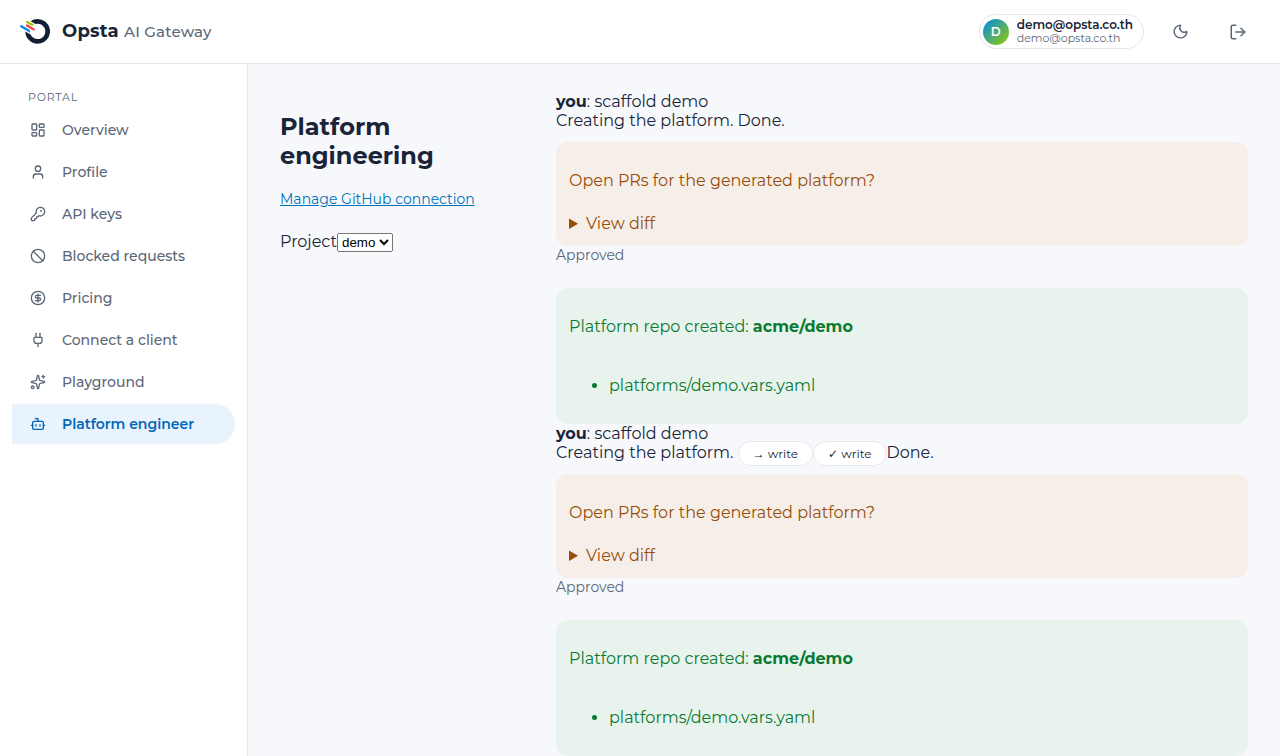
scaffold demoThe assistant streams its reply live: you'll see its reasoning appear token by token, along with small chips showing which tools it's using as it works (for example, writing a file). If you want to stop a reply partway through, click Cancel — it appears in place of Send while the assistant is replying.
Approve before anything ships
Once the assistant has finished preparing the change, it stops and asks for your approval — "Open PRs for the generated platform?" — with a short summary and a View diff link so you can see exactly what will be created.
- Approve — the assistant creates the repository/pull request and shows you a card with the result: the repo name and the file(s) it added.
- Reject — nothing is created. You can start a new request describing what you'd change.
Nothing is opened on GitHub until you approve.
Conversations persist
Your conversation is saved as you go. If you reload the page or come back later, you'll see the same timeline — including an already-approved request and its resulting PR card — exactly as you left it. You won't be asked to approve the same request twice.
Switch between conversations
The left rail lists your past conversations for the current project, most recent first. Click any one to switch to it — its full timeline (including any approved/rejected requests and PR cards) loads in place of what's currently showing. Click New chat to start a fresh conversation without losing the old one; it stays in the list and you can always click back into it later. Switching and New chat are disabled while the assistant is mid-reply.
Connect GitHub
Before the assistant can open pull requests for a project, that project needs a GitHub connection. Click Manage GitHub connection at the top of the chat page to go to the project's settings:
- Connect GitHub — starts the GitHub App install flow. Once installed, the connection is remembered for that project and every future scaffold request reuses it.
- Connected repos — shows the organization, installation, and repositories currently bound to the project, so you can confirm the connection before you start scaffolding.
If GitHub isn't configured for your project yet, ask an administrator to complete the install.
Next steps
- Connect a client — the chat/completions API this project also uses.
- Use MCP servers — governed tool access for your other agents.