

Usage & budget
The Overview dashboard shows what you've used and what you have left — so there are no billing surprises. It adapts to where you are: brand new, it walks you through getting connected; once you've made requests, it becomes a live budget and spend monitor.
Prerequisite
You're signed in and your account is linked to a consumer (Get access).
Before your first request
If you haven't made a request yet, the Overview shows a Get connected card instead of empty budget numbers — three steps to your first response through the gateway, plus a Models you can use reference showing exactly which models your group is allowed to call and their per-1k-token price.
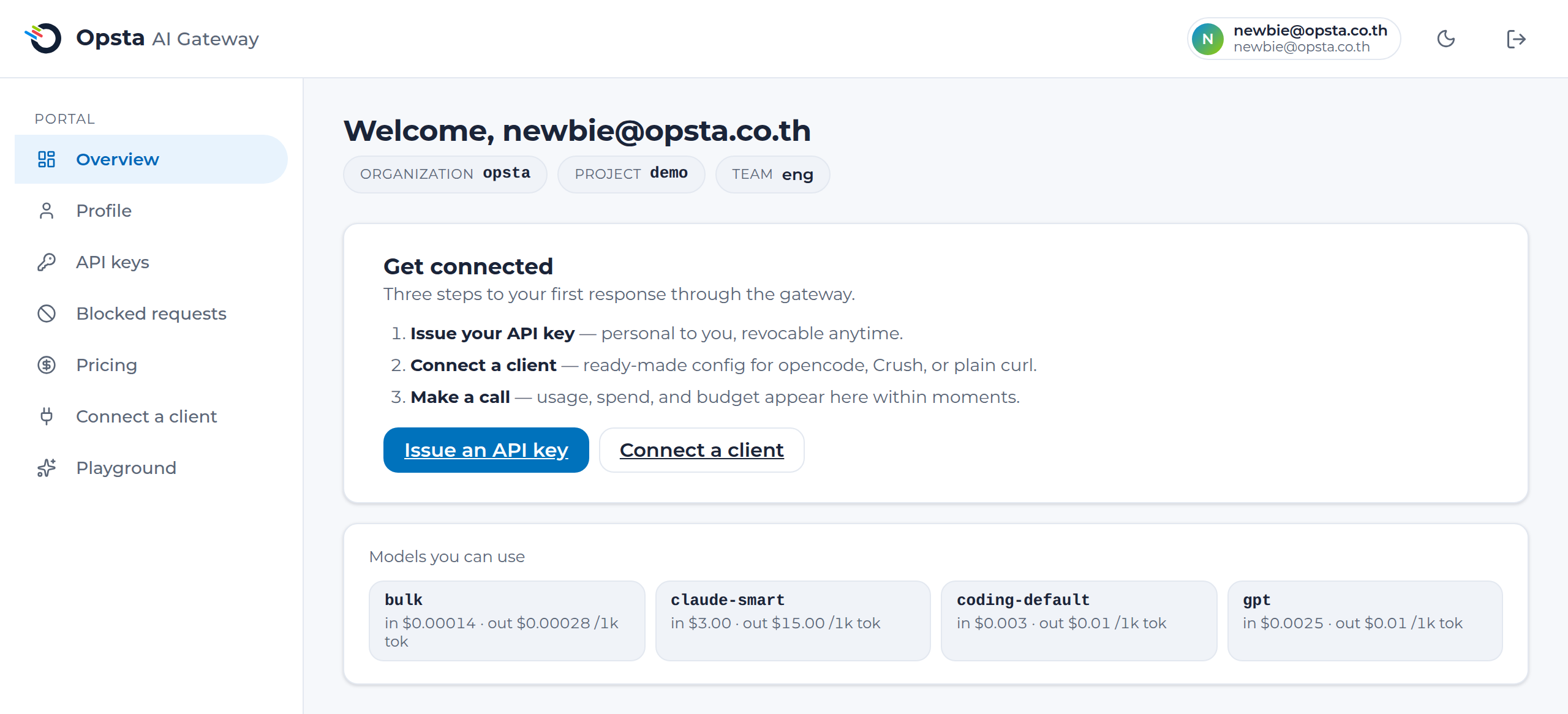
- Issue your API key — personal to you, revocable anytime. See Manage API keys.
- Connect a client — ready-made config for opencode, Crush, or plain curl. See Connect a client.
- Make a call — usage, spend, and budget appear here within moments of your first request.
Once you're using the gateway
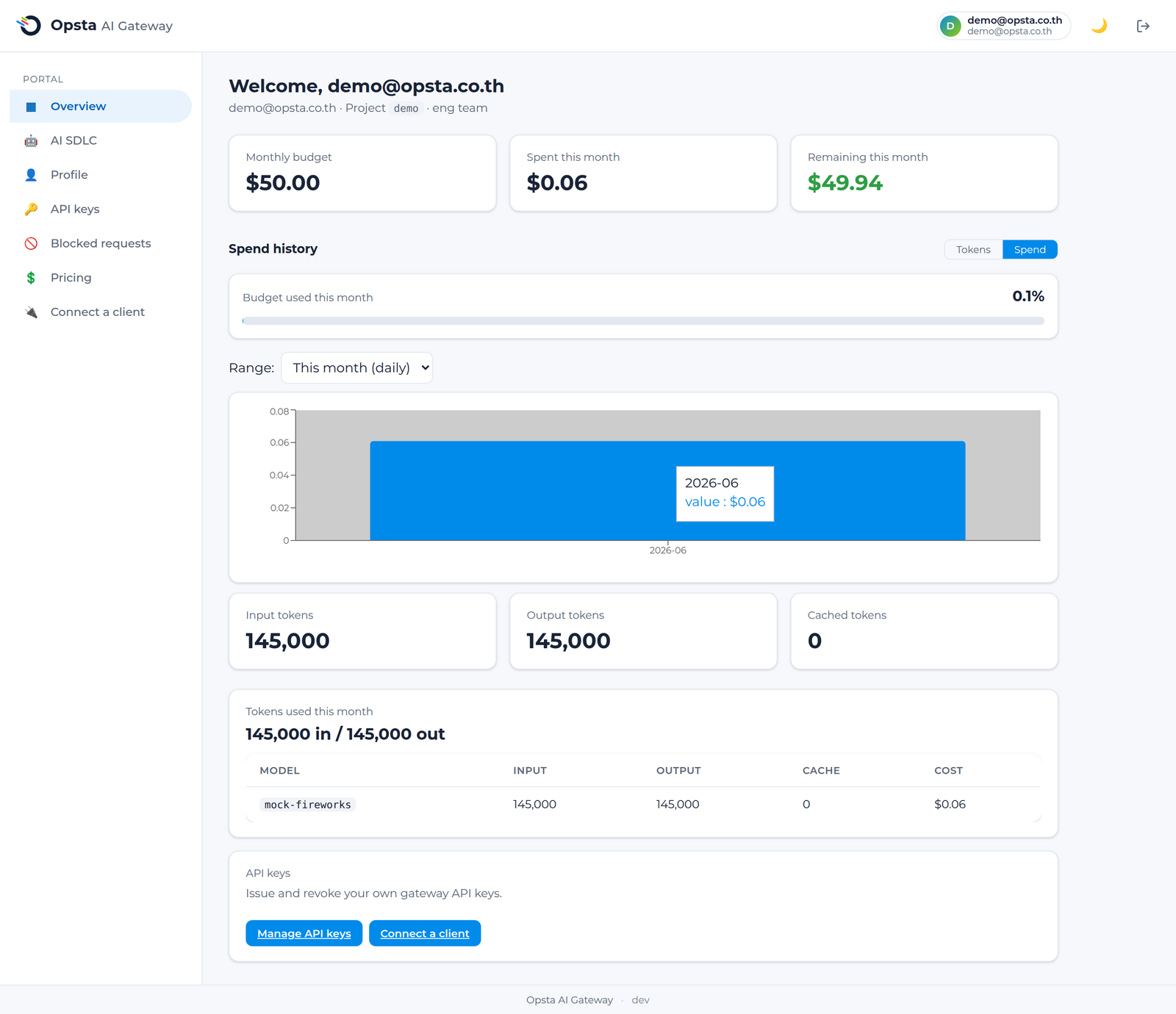
After your first requests land, the Overview becomes your budget and spend monitor.
- Budget gauge — a single ring showing what's remaining this calendar month (UTC), colored by how close you are to your cap: on track, approaching the limit, or over.
- Token usage & last activity — input, output, and cached tokens for the month, and the most recent day you had any activity.
- Spend history — a daily token trend or a monthly spend trend, whichever range you pick.
- Models you can use — the same allow-list reference shown before your first request, so it's always there to check.
- Per-model breakdown — cost by model, with a proportional bar so the biggest driver of your spend is obvious at a glance.
How budgets work
Your budget is part of a hierarchy — organization ≥ project ≥ group ≥ user — and the tightest cap applies. When you reach a cap, further requests are rejected with 429 Too Many Requests until the next month or until an administrator raises the limit.
Semantic caching can stretch your budget: repeated or similar prompts may be served from cache, which costs nothing against your budget.
Switching between projects
If you belong to more than one project, a Project switcher appears next to your organization on the Overview and API keys pages. Pick a project to see its own budget, usage and keys. On the API keys page, the selected project is the one a new key is issued for, and the keys table shows a Project column so you can tell which key belongs where. If you're in a single project, there's nothing to switch and the switcher is hidden.
If you hit your limit
- Wait for the monthly reset, or
- Ask your org admin to adjust your budget or limit.
Next steps
- Connect a client — if you haven't sent your first request yet.
- Blocked requests — if a request was rejected by a guardrail rather than a budget.
- Request lifecycle — which gate produced a given status code.