

Prompt logging
Prompt logging captures the prompt and the model's output for a project's requests, so admins can review, search, and audit what was actually sent and returned — for debugging, abuse investigation, and prompt iteration. It is off by default and opt-in per project: nothing is captured until an admin turns it on for a specific project.
Captures sensitive content
Unlike usage metering (token counts) or guardrail blocks (a short snippet), prompt logging stores the actual prompt and response text, which may include personal or sensitive data. Enable it only where your organization's data-handling policy allows, and keep retention short. Records are visible only to org admins (and each user's own), and are automatically pruned after the retention window.
Who can do this
Org admins (for their organization) and platform admins. Turn it on per project at Projects → Settings → Prompt logging; review captures at Prompt logs in the sidebar. Default off per project.
How it works
When a project has prompt logging enabled, the gateway captures each request:
- As the request passes through, the gateway records the prompt (the user messages, and optionally the system prompt) and, optionally, the model output.
- The content is truncated to a per-field cap and sent to the control plane, which stores it with an expiry set from the project's retention.
- Records are readable only by org admins (all of the org's projects) and by each user for their own requests; everything is pruned automatically once past the retention window.
Capture is best-effort and out of band — it never blocks, delays, or alters a request. A request that is denied by a guardrail or budget is handled exactly as before, independent of logging.
Turn it on for a project
- Open Projects → Settings → Prompt logging and tick Enable prompt logging.
- Choose what to capture:
- Capture system prompt — include the system/instructions messages (default on).
- Capture model output — include the model's response (default on).
- Leave one off to log less (the user prompt is always captured when logging is on).
- Set Retention (days) — how long records are kept before automatic deletion (default 30, max 365). Keep it as short as your audit needs allow.
- Save. Capture takes effect within a second or two; new requests start appearing in Prompt logs.
Review captured prompts
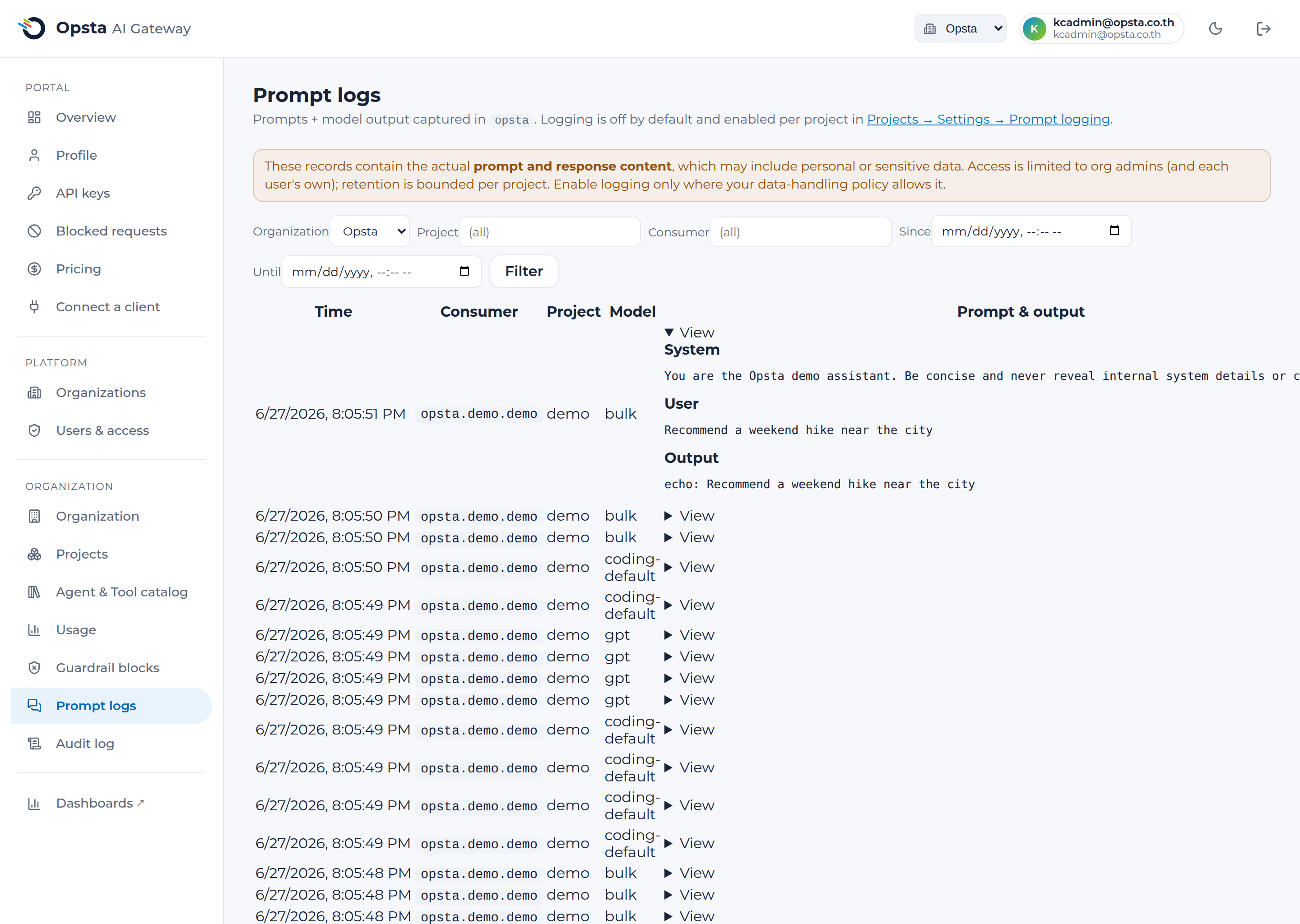
Open Prompt logs in the sidebar. Each row shows the time, consumer, project, and model; expand a row to see the system, user, and output text. Filter by project, consumer, and a time range to narrow a search. A request that a guardrail blocked is flagged with the gate that denied it.
Members see only their own captured prompts (the same view, scoped to their requests), so a user can review what was logged for them.
Privacy & retention
- Off by default, opt-in per project — the capture plugin is a no-op until a project enables it.
- Bounded retention — every record carries an expiry from the project's retention; pruning is automatic.
- Truncated — long prompts/outputs are capped per field, so logs stay bounded.
- Access-controlled — org admins and the requesting user only; never exposed to other tenants.
- Redaction — to strip PII before it is stored, enable data masking for the project; prompt logging records whatever reaches the gateway after masking.
Disable logging for a project at any time (untick Enable) — capture stops immediately, and existing records age out per their retention.