

Organizations & members
An organization is the top-level boundary — one enterprise customer, fully isolated. This page covers creating organizations, managing members and roles, and grouping users.
Who can do this
Platform admins create organizations and appoint org admins. Org admins manage members, roles, and groups within their own organization.
Create an organization (platform admin)
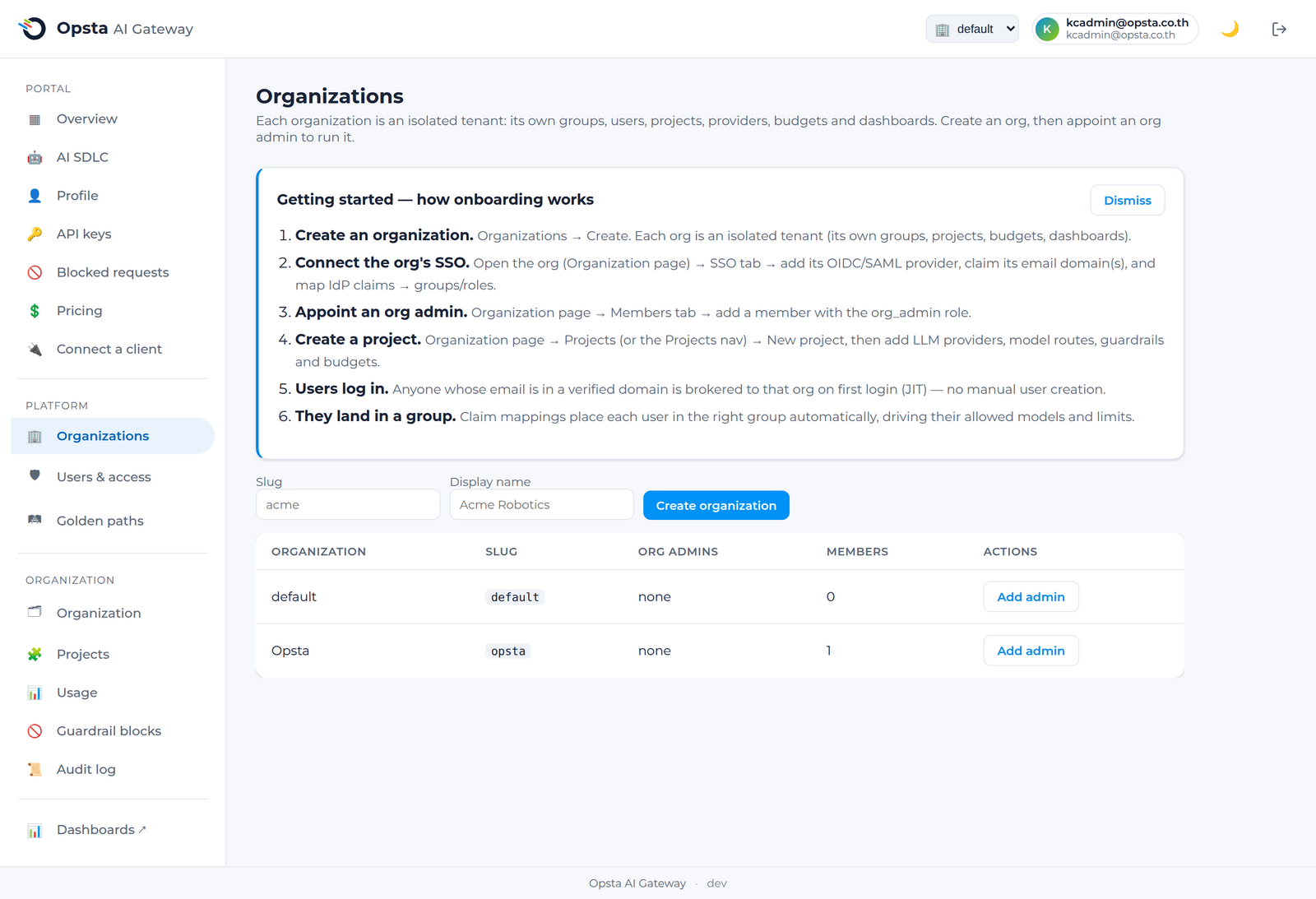
- Open Organizations under the Platform section.
- Click Create organization and give it a name and slug.
- Appoint one or more org admins by email — they receive admin rights scoped to this organization.
Manage members (org admin)
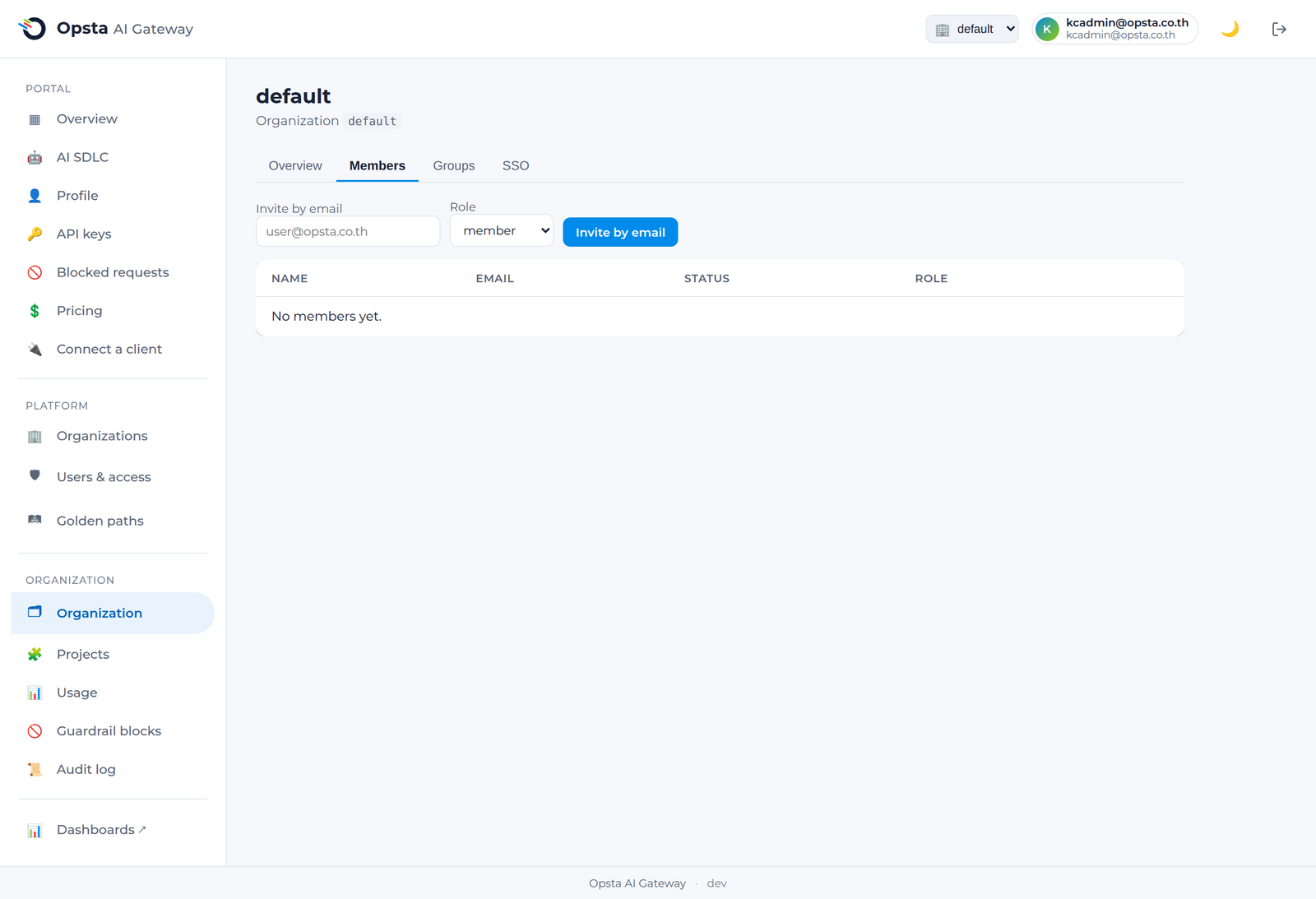
On Organization → Members you can:
- Invite a member by email.
- Set a role —
memberororg_admin(only a platform admin can grantorg_admin). - Remove a member.
Members are global identities; a person can belong to more than one organization, each with its own role.
Roles
| Role | Scope |
|---|---|
| Platform admin | All organizations; pricing; platform login methods; cross-org audit |
| Org admin | One organization — members, projects, providers, budgets, guardrails, MCP, IdP |
| Member | Personal portal — own keys, usage, blocked requests |
Groups
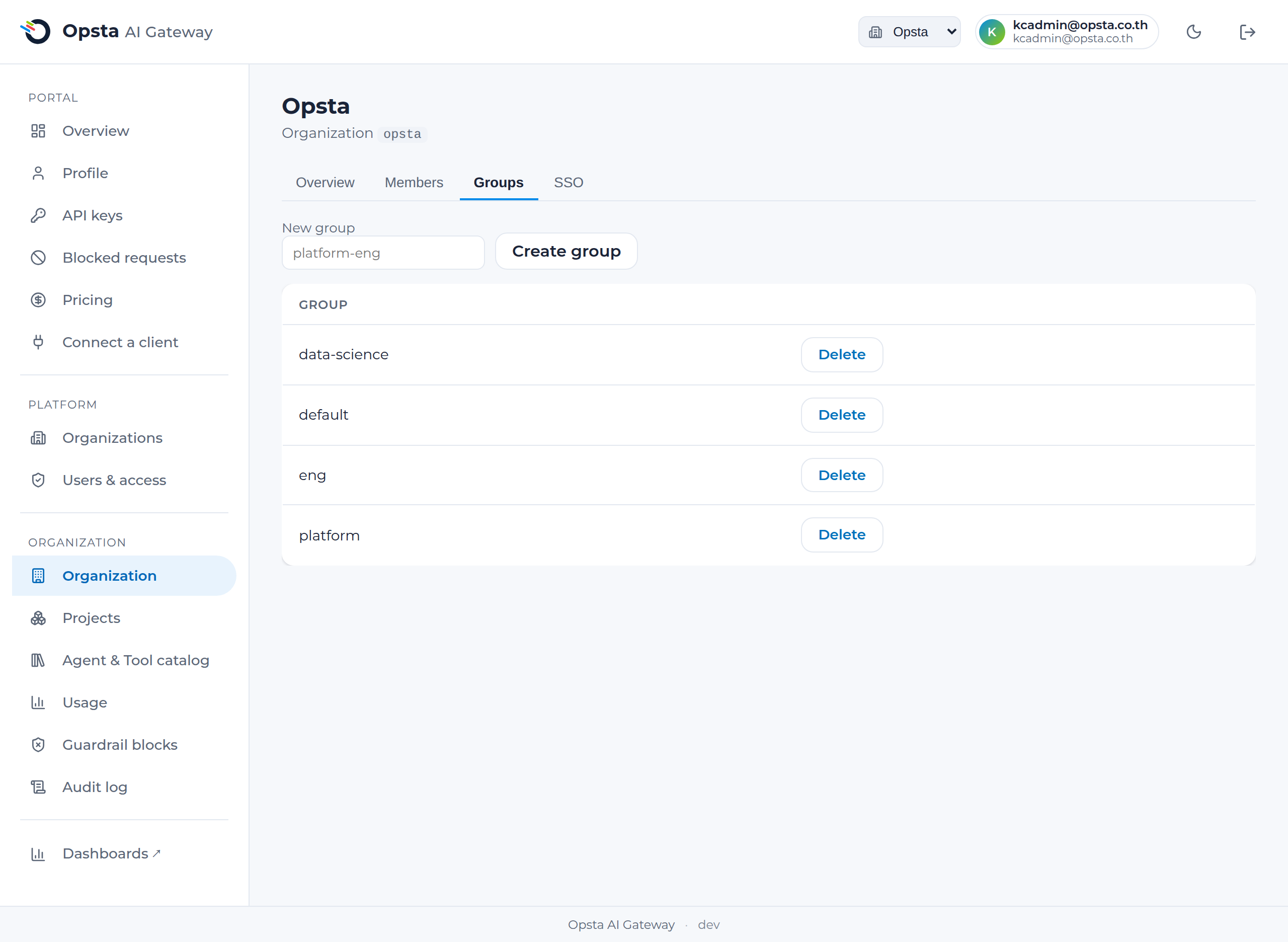
On Organization → Groups you create groups (teams) that map from your identity provider. Groups are used for model access and budget aggregation, and are assigned to projects. When you connect an identity provider (SSO & IdP), users land in the right group automatically on first login.
Every member, agent and service account belongs to exactly one group, which is why the Group field is required when you add someone to a project (Projects → Users). The group decides which models that person may call. You don't have to pre-create groups for the common case: every organization has a default group that the form pre-selects, and picking any group name creates it on the spot if it doesn't exist yet — so adding a member is one tap and never fails on a missing group.
When you add a member (a person with an SSO login), the gateway does not issue them an API key — they generate their own from their Keys page after signing in. Only service accounts and agents, which have no login, receive a key at creation time for the admin to hand off.
Delete a group with the Delete button on Organization → Groups. Deletion is blocked (with a clear message) while any member or agent still uses the group — reassign or remove them first, so no one is left without model access.
Next steps
- Projects — configure what each team can do.
- SSO & IdP brokering — connect your corporate login.